 1
1
 0
0
Comparing AWS DataSync and Snowflake COPY FILES: Moving files between clouds is one of those problems that sounds simple until you actually try it. Here’s what I found comparing two approaches to the same problem — one from AWS, one from Snowflake — and where each one fits.
The problem
Recently I have been asked to run an analysis on two different approaches for moving files from an AWS S3 bucket into Azure Blob Storage. One from AWS, one from Snowflake and put together a comparison of how each behaves, what they cost, and where each one fits. Moving files between clouds is one of those problems that sounds simple until you actually try it. Here’s what I found comparing two approaches to the same problem
The two approaches I was asked to evaluate:
- AWS DataSync — Amazon’s purpose-built data transfer service
- Snowflake COPY FILES — Snowflake’s serverless file-copy command that works across storage integrations
Both work. But they behave very differently, and the differences matter more than the marketing pages let on.
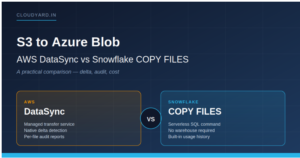
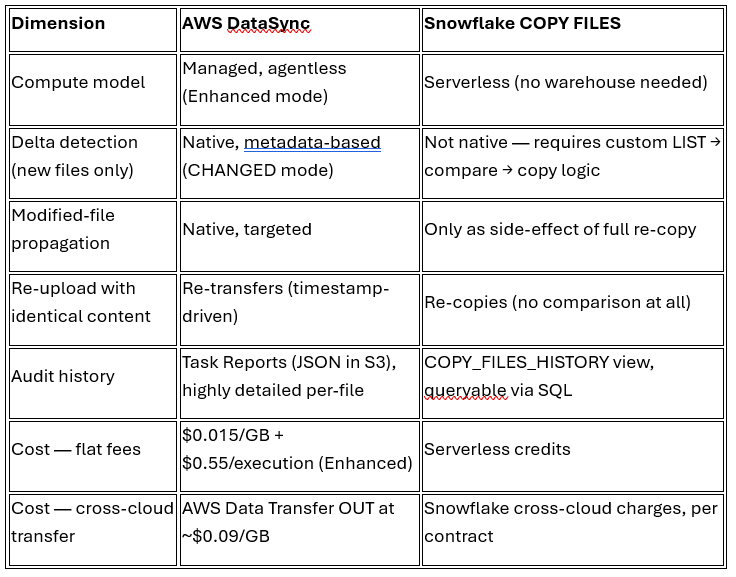
DataSync gives you native delta detection and per-file audit reports out of the box, but charges $0.55 per task execution on top of a per-GB rate. COPY FILES is beautifully simple and serverless, but has no built-in delta detection — every re-run copies everything unless you build custom LIST → compare → copy logic around it.
The Two Approaches at a Glance
AWS DataSync: Setup and Behaviour
AWS DataSync is Amazon’s fully managed service for moving large amounts of data between storage systems i.e. on-premises, edge, or cloud.
Enhanced vs Basic mode
DataSync has two task modes with meaningfully different characteristics.
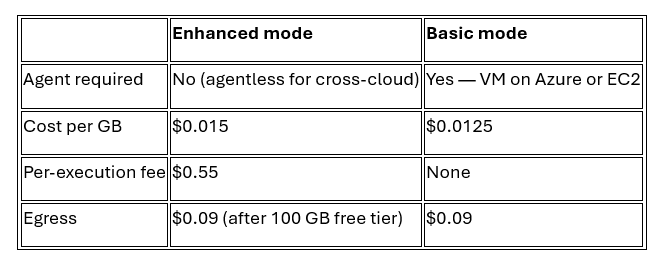
For my testing I used Enhanced mode.
The Setup
The Setup
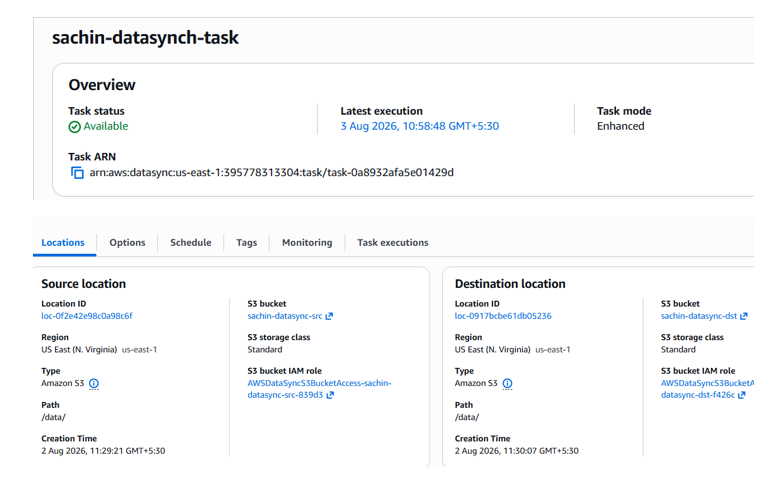
I ran my tests using a same-region S3 → S3 setup to avoid egress charges during exploration. The delta and audit behaviour is the same for cross-cloud transfers only the egress cost changes.
create the Task
DataSync → Tasks → Create task → pick both locations.
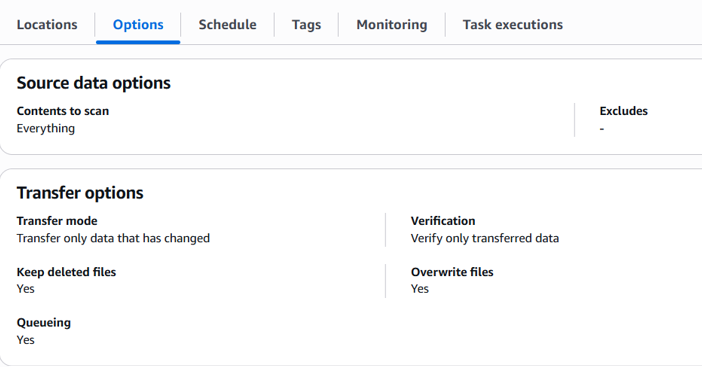
Configure settings — this is where the config matters:
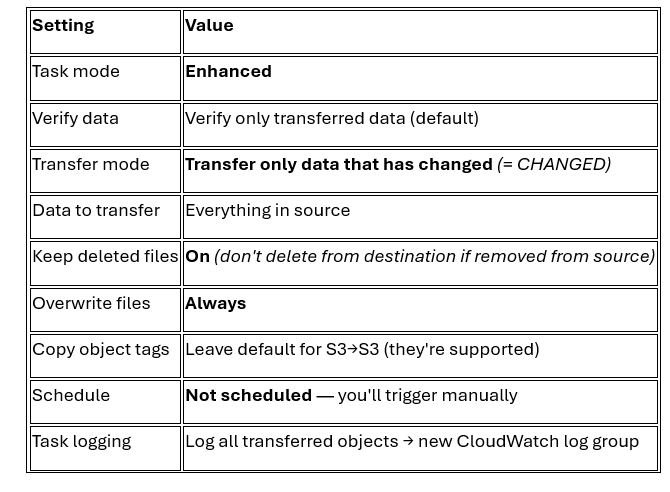
Five behavioural tests:
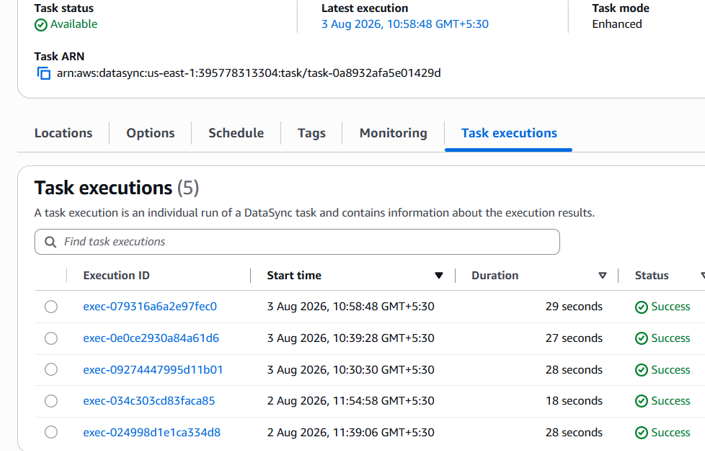
I ran five scenarios to understand exactly how DataSync decides what to move.
Run 1: Initial transfer. 10 new files, empty destination. All 10 transferred in about 28 seconds. No surprises.
Run 2: Re-run with no changes. This is the delta test. Result: Files Transferred: 0, FilesSkipped: 10. Zero bytes moved. The whole point of using TransferMode = CHANGED is that this steady state is free — no egress cost when nothing has changed at source.
Run 3: Add two new files. Result: exactly 2 files transferred, 10 skipped. Delta detection correctly identified the two new arrivals.
Run 4: Modify content of one file. Result: 1 file transferred, 11 skipped. The modified file’s content propagated to the destination. This confirms that OverwriteMode = ALWAYS actually overwrites existing destination files when the source changes.
Run 5: Re-upload a file with identical content. This one is the interesting one. I re-uploaded a file to S3 with byte-for-byte identical content — same filename, same size, same ETag. Result: DataSync re-transferred it.
How DataSync actually decides what to transfer
How DataSync actually decides what to transfer
Per AWS documentation and confirmed by my five test runs:
AWS DataSync compares the source and destination by scanning both locations and comparing metadata (including path, size, modification time, and other relevant metadata depending on the storage type) to determine what needs to be transferred. By default (TransferMode = CHANGED), only files or objects that DataSync determines have changed are transferred. After the transfer, DataSync performs a checksum-based verification (depending on the configured VerifyMode) to ensure that the transferred data and metadata were copied correctly. DataSync does not perform byte-level or block-level delta synchronization within a file. If a file is identified as changed, the entire file is transferred again.
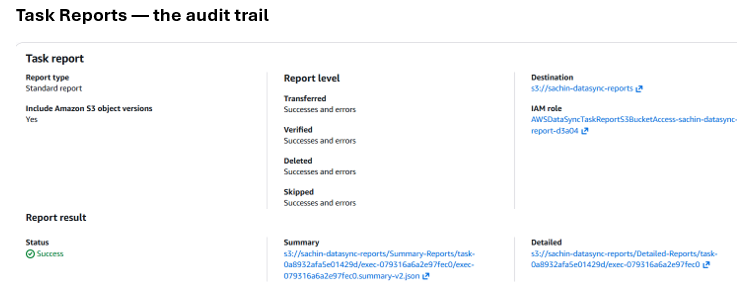
DataSync generates two types of JSON reports per task execution, written to a designated S3 bucket:
Summary report — one JSON per execution with run-level counters: FilesTransferred, FilesSkipped, FilesVerified, BytesTransferred, per-phase failure counters, and full task configuration.
Detailed reports — per-file JSON entries (sharded across multiple files for larger runs) capturing:
- File path
- Source metadata: size, LastModified, ETag, user metadata, tags
- Destination metadata (for skipped files — useful for comparison)
- Transfer timestamp (exact moment DataSync wrote to destination)
Transfer status and skip reason in plain English.
AWS DataSync — Cost Analysis
AWS DataSync — Cost Analysis
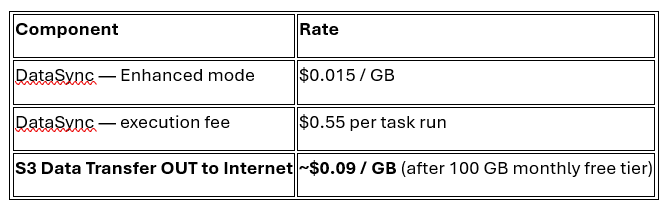
DataSync pricing is refreshingly simple, but sits on three separate billing meters
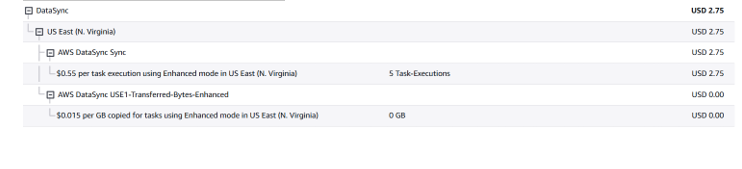
Actual POC bill
My five test runs came to exactly $2.75 — five executions × $0.55, plus effectively $0 for the data itself (450 bytes total is well below any rounding threshold) and $0 egress because I stayed same-region.
Snowflake COPY FILES — Setup and Behaviour
The second approach in the comparison is Snowflake’s COPY FILES command.
COPY FILES copies files between two external stages without loading them into a table. It’s serverless (no warehouse required), and Snowflake auto-provisions the compute for the operation.
Setup
The setup involves creating storage integrations for both clouds, then external stages that use them.
S3 storage integration and stage:
create or replace storage integration s3_int

type = external_stage

storage_provider = s3

enabled = true

storage_aws_role_arn = 'arn:aws:iam::395778313304:role/testsnowflake'

storage_allowed_locations = ('s3://awstestingsrcbkt/');
CREATE OR REPLACE STAGE AWS_COPY_SOURCE_STAGE

URL = 's3://awstestingsrcbkt/'

STORAGE_INTEGRATION = s3_int;
Azure storage integration and stage:
create or replace storage integration azure_int

type = external_stage

storage_provider = azure

enabled = true

azure_tenant_id = '8bfd4cdf-17b0-4e3e-8d6f-a4312a644108'

storage_allowed_locations = ('azure://snowbucket.blob.core.windows.net/awstestingdestbkt/');
CREATE OR REPLACE STAGE AZURE_COPY_TARGET_STAGE

URL = 'azure://snowbucket.blob.core.windows.net/awstestingdestbkt/'

STORAGE_INTEGRATION = AZURE_INT;
The COPY FILES command itself:
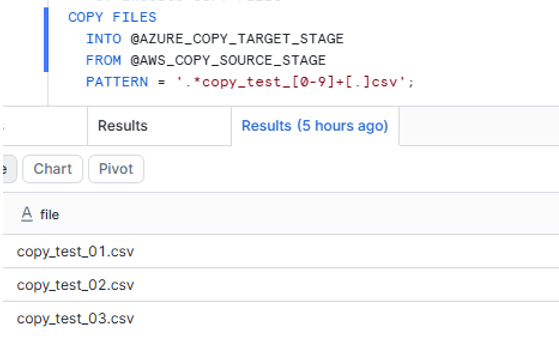
COPY FILES

INTO @AZURE_COPY_TARGET_STAGE

FROM @AWS_COPY_SOURCE_STAGE

PATTERN = '.*copy_test_[0-9]+[.]csv';
Behavioural observations
Behavioural observations
I tested four scenarios, mirroring the DataSync tests to allow like-for-like comparison.
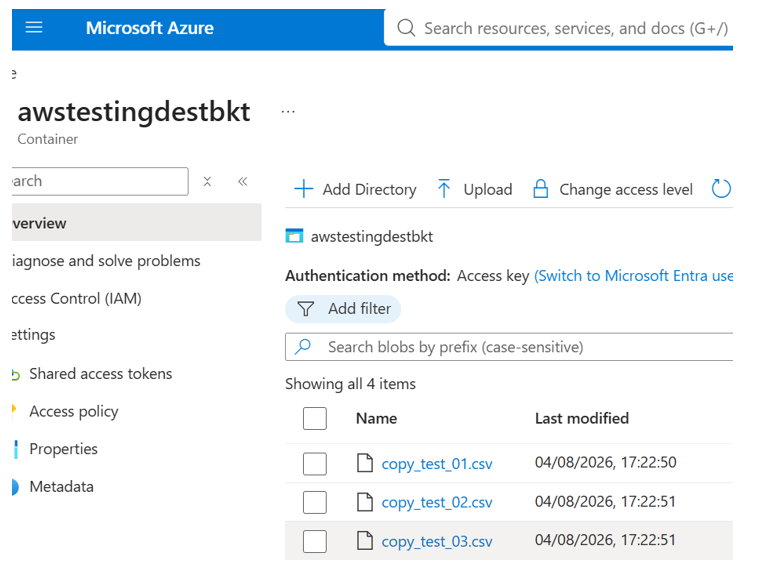
Test A — Initial transfer. All 3 test files (~150 MB total) successfully copied from the AWS S3 stage to the Azure Blob stage. Serverless — no warehouse required.
Test B — Re-execute with no source changes. This is where it gets interesting. COPY FILES does not perform incremental detection. Re-executing the same command causes Snowflake to attempt to copy all files matching the pattern, regardless of whether they already exist at the destination. To achieve incremental behaviour, you have to build it yourself — for example, LIST the source stage, LIST the target stage, compare, and copy only the missing files.
Test C — Modify content of one source file. Same behaviour as Test B — Snowflake does not detect which files have changed. Re-executing copies everything matching the pattern and overwrites files with the same name at the target. So modified content does propagate, but only as a side-effect of the full re-copy, not through targeted detection.
Observing the copy
Snowflake gives you two useful ACCOUNT_USAGE views for tracking what happened.
SELECT

start_time,

files_copied,

ROUND(bytes_copied / POWER(1024, 3), 4) AS gb_copied,

credits_used,

ROUND(credits_used * 2.96, 4) AS estimated_compute_cost_usd

FROM SNOWFLAKE.ACCOUNT_USAGE.COPY_FILES_HISTORY

WHERE sub_service_type = 'COPY STAGE FILES'

ORDER BY start_time DESC;
For my 3-file / 150 MB test, this returned 0.002906667 credits, roughly $0.0086 at an assumed $2.96/credit.
Cross-cloud data transfer volume:
SELECT

start_time,

source_cloud, source_region,

target_cloud, target_region,

transfer_type,

ROUND(bytes_transferred::NUMBER / POWER(1024, 3), 4) AS gb_transferred

FROM SNOWFLAKE.ACCOUNT_USAGE.DATA_TRANSFER_HISTORY

WHERE transfer_type = 'COPY_FILES'

ORDER BY start_time DESC;

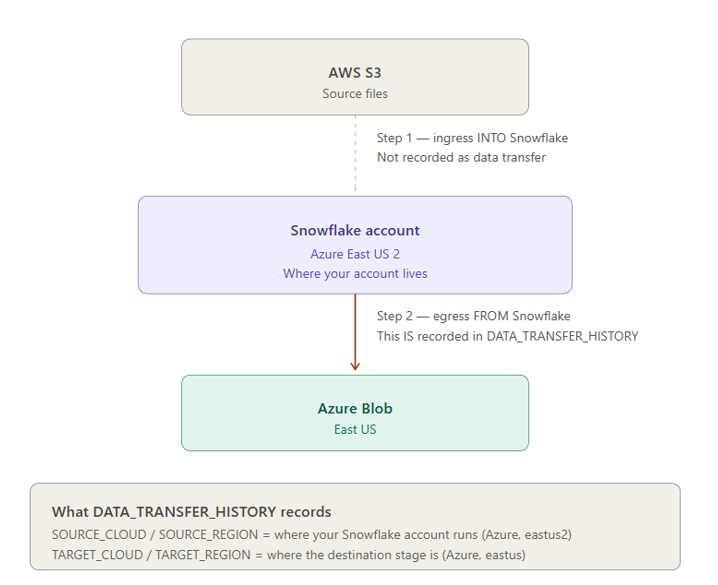
Here’s the observation that surprised me. Although the source files live in AWS S3, DATA_TRANSFER_HISTORY recorded the transfer as Azure East US 2 → Azure East US — not AWS → Azure.
Cross-cloud data transfer cost:
SELECT

usage_date,

account_name,

region,

service_type,

rating_type,

usage AS billed_tb,

currency,

usage_in_currency AS data_transfer_cost

FROM SNOWFLAKE.ORGANIZATION_USAGE.USAGE_IN_CURRENCY_DAILY

WHERE account_name = CURRENT_ACCOUNT_NAME()

AND service_type = 'DATA_TRANSFER'

ORDER BY usage_date DESC;

Snowflake COPY FILES — Cost Analysis
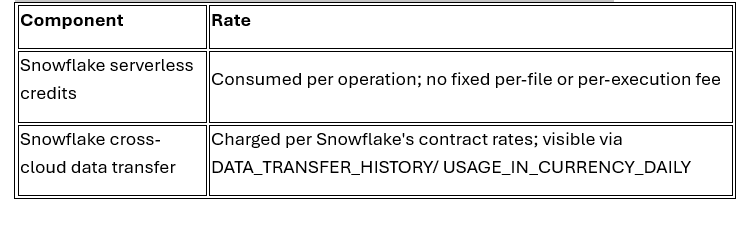
The COPY FILES cost model is fundamentally different from DataSync’s:
Which One Should You Choose?
Which One Should You Choose?
There isn’t a universal answer here, and I’d be sceptical of anyone who tells you there is. The right choice depends on where ownership of the pipeline lives and what your workload actually looks like.
AWS DataSync fits when:
- The AWS team owns the migration or replication task
- Native delta detection is required with no custom logic
- Per-file audit reports are a hard requirement (compliance, reconciliation)
- File volumes or counts are large
Snowflake COPY FILES fits when:
- The data-platform team owns the pipeline
- The transferred files are consumed by Snowflake downstream anyway
- Volumes are small to moderate
- The team is willing to build and maintain custom incremental logic