 1
1
 1
1
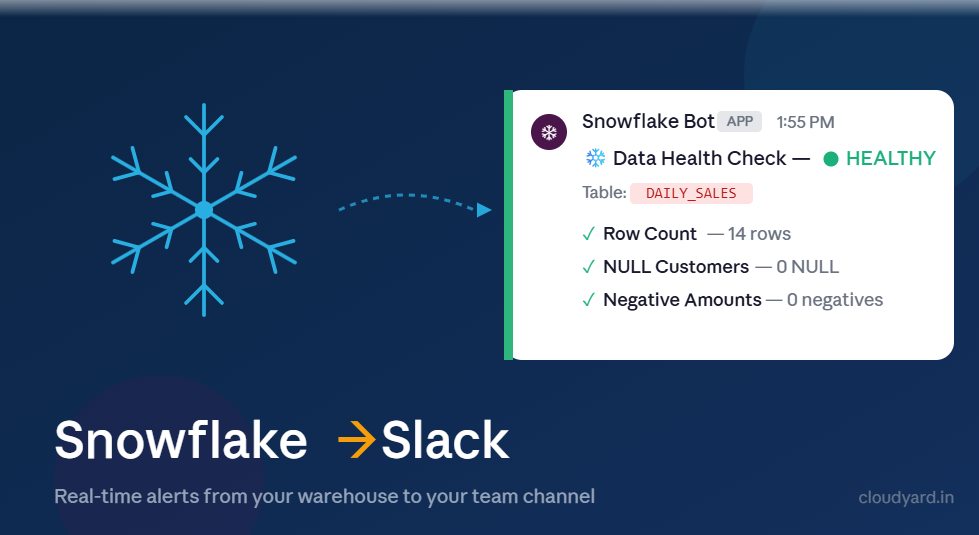
Snowflake → Slack: real-time alerts: Sometimes you want Snowflake to tell your team something — a job finished, a table has bad data, yesterday’s numbers are ready. Email works, but nobody reads it fast. Dashboards work, but only if someone is looking. Slack is where most teams already are. This post shows a simple way to send messages from Snowflake straight into a Slack channel, using a small stored procedure you can call from anywhere i.e. a Task, a script. Setup takes about 15 minutes and costs nothing.
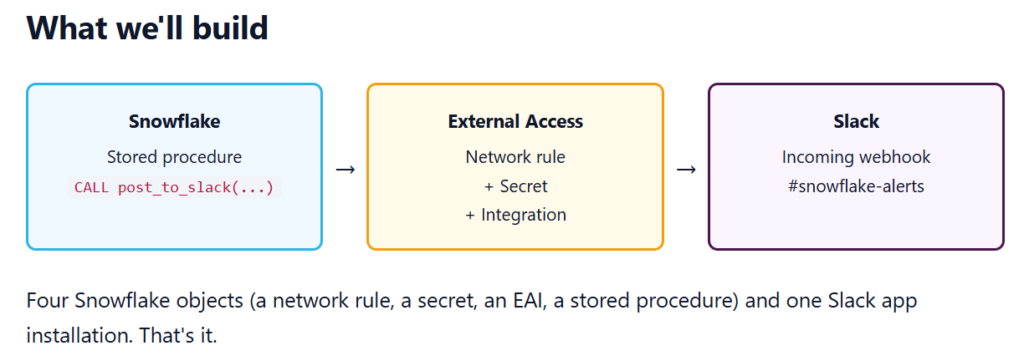
Snowflake talk to Slack directly, using two features that were built for exactly this: Slack Incoming Webhooks and Snowflake’s External Access Integration.
Part 1 — Slack side (5 minutes)
Step 1: Create a workspace
If you already have a Slack workspace you can post to, skip ahead. Otherwise it’s a free 3-minute setup:
- Go to
slack.com/get-started#/createnew - Enter your email — personal is fine
- Verify the 6-digit code Slack emails you
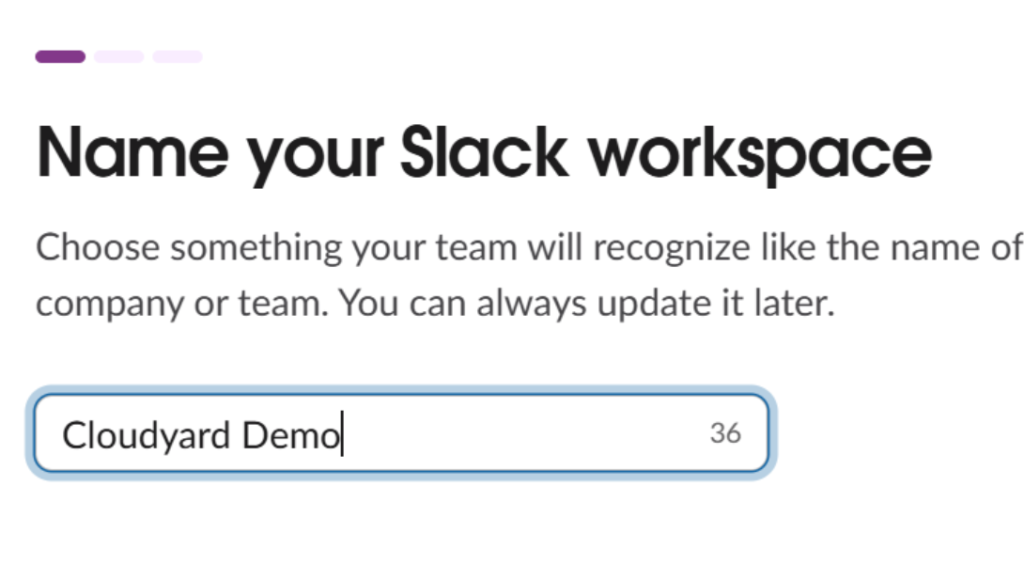
- Workspace name — I used Cloudyard Demo
- Skip the “invite teammates” step
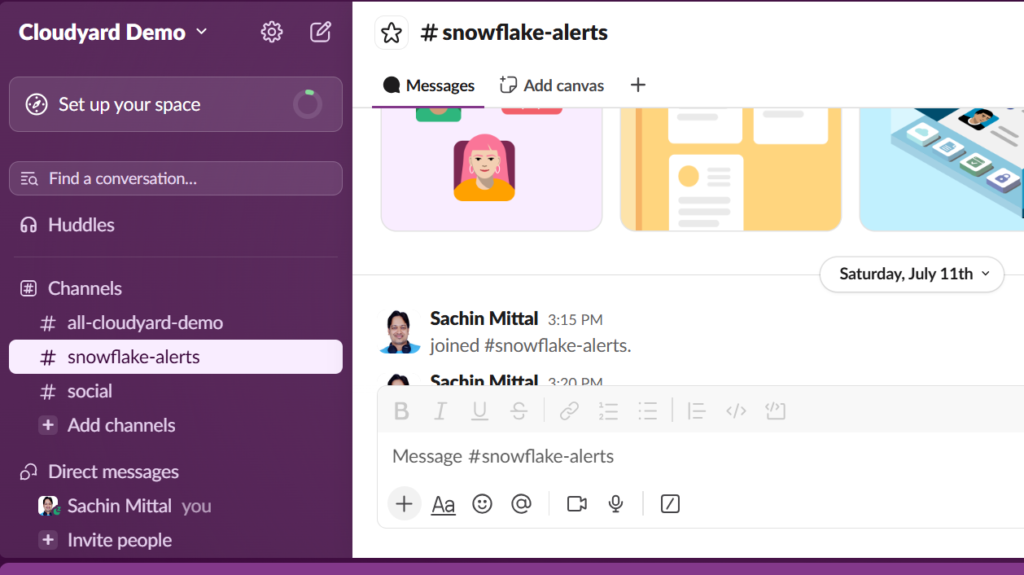
- First channel — I named mine
snowflake-alerts
Step 2: Install the Incoming WebHooks app
From your workspace:
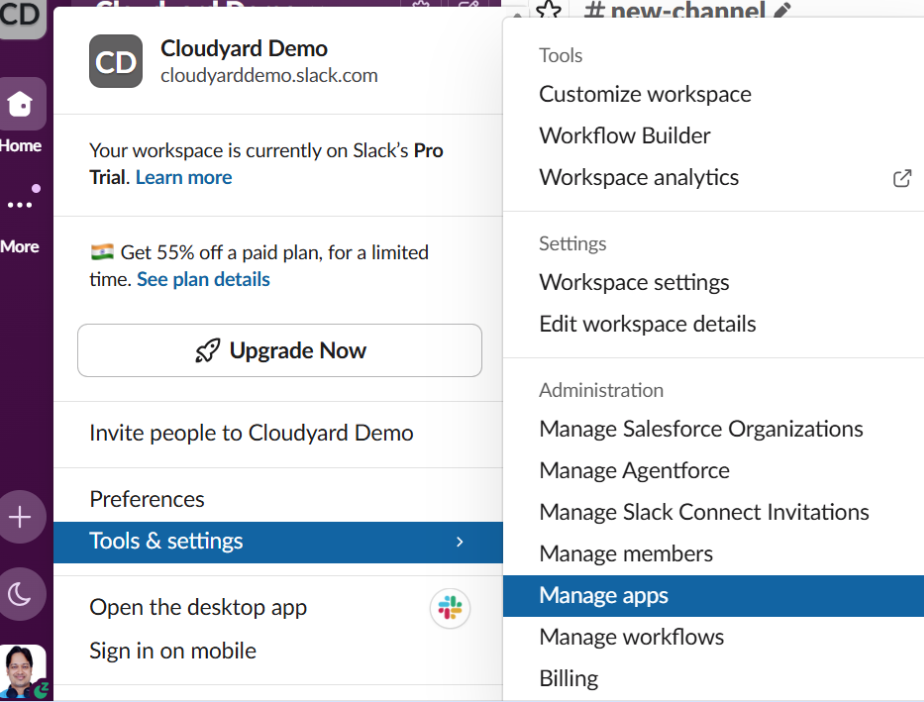
- Click the workspace name (top-left) → Tools & settings → Manage apps
- A new tab opens at
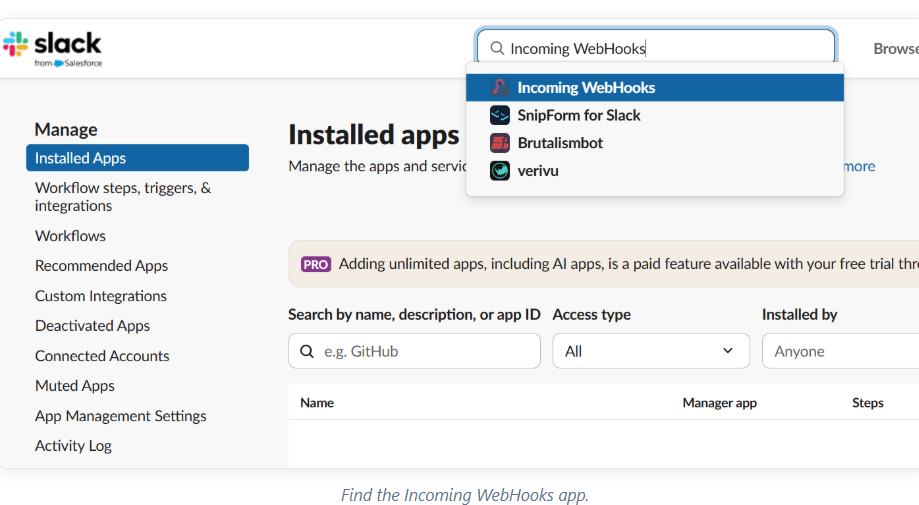
<your-workspace>.slack.com/apps - Search for Incoming WebHooks and click the green icon
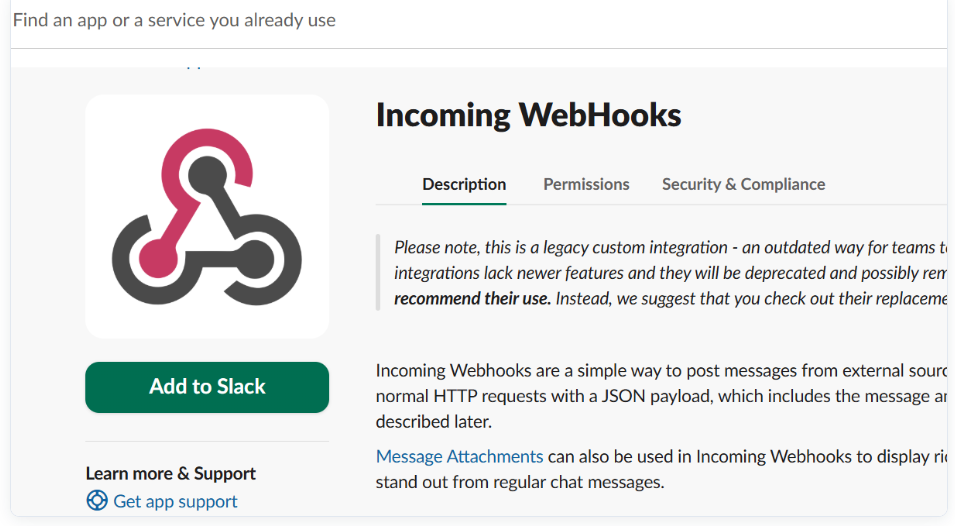
- Click Add to Slack
Step 3: Bind it to a channel and copy the URL
Pick the channel you want alerts to land in (I picked #snowflake-alerts), click Add Incoming WebHooks integration, and Slack drops you on a config page. Scroll to Webhook URL and copy it. It looks like this:
https://hooks.slack.com/services/T09XXXXX/B09XXXXX/aBcDeFgHiJkLmNoPqRsTuVwX

(Optional) Scroll down: set Customize Name = Snowflake Bot, Customize Icon = ❄️ emoji
Click Save Settings at the bottom
Part 2 — Snowflake side (10 minutes)
Four objects, in order. You’ll need a role that can create integrations — ACCOUNTADMIN is easiest, or any role with CREATE INTEGRATION on the account.
1. Network rule — which hosts can we reach?
By default, Snowflake stored procedures can’t call out to the internet at all. A network rule whitelists specific hosts. Slack’s webhooks all live on hooks.slack.com, so that’s all we need to allow:
-- 1. Network rule for Slack
CREATE OR REPLACE NETWORK RULE slack_webhook_network_rule
  MODE = EGRESS
  TYPE = HOST_PORT
  VALUE_LIST = ('hooks.slack.com');
2. Secret — store the webhook URL safely
Never hardcode the webhook URL inside the procedure. Store it as a secret and let the procedure fetch it at runtime — that way you can rotate the URL without touching code, and the URL never appears in SHOW PROCEDURES or GET_DDL output.
-- 2. Store the webhook as a secret
CREATE OR REPLACE SECRET slack_webhook_secret
  TYPE = GENERIC_STRING
  SECRET_STRING = 'https://hooks.slack.com/services/T09XXXXX/B09XXXXX/aBcDeFgHiJkLmNoPqRsTuVwX';
3. External Access Integration — the bridge
The EAI is the object you actually grant to a procedure or UDF. It bundles the network rule (which hosts) and the secret (which credentials) into a single grantable unit.
-- 3. External access integration
CREATE OR REPLACE EXTERNAL ACCESS INTEGRATION slack_webhook_eai
  ALLOWED_NETWORK_RULES = (slack_webhook_network_rule)
  ALLOWED_AUTHENTICATION_SECRETS = (slack_webhook_secret)
  ENABLED = TRUE;

4. The stored procedure
Here’s the whole thing — a Python 3.11 procedure that reads the secret and POSTs a formatted payload to Slack:
-- 4. Stored proc to post messages
CREATE OR REPLACE PROCEDURE post_to_slack(message STRING)
RETURNS STRING
LANGUAGE PYTHON
RUNTIME_VERSION = '3.11'
HANDLER = 'run'
EXTERNAL_ACCESS_INTEGRATIONS = (slack_webhook_eai)
PACKAGES = ('snowflake-snowpark-python', 'requests')
SECRETS = ('webhook' = slack_webhook_secret)
AS
$$
import _snowflake, requests, json
def run(session, message):
    url = _snowflake.get_generic_secret_string('webhook')
    payload = {
        "text": f":snowflake: *Snowflake Alert*\n{message}"
    }
    r = requests.post(url, json=payload)
    return f"Status: {r.status_code}"
$$;
Test it
-- 5. Test
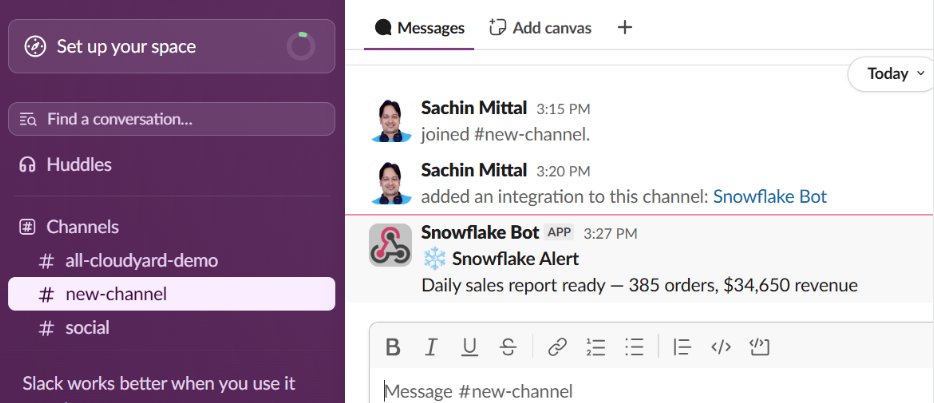
CALL post_to_slack('Daily sales report ready — 385 orders, $34,650 revenue');
You should get back Status: 200, and within a second, this shows up in your channel:
A real example: data health check
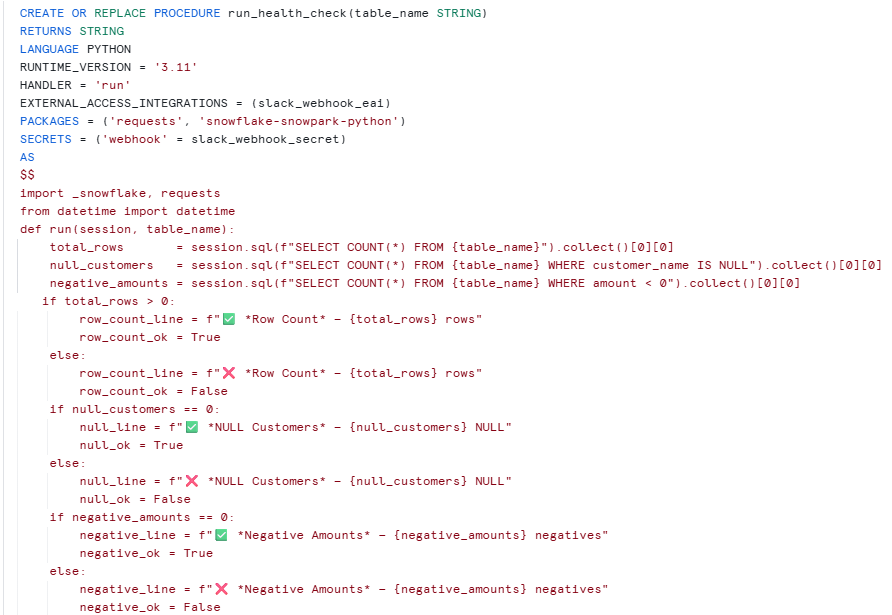
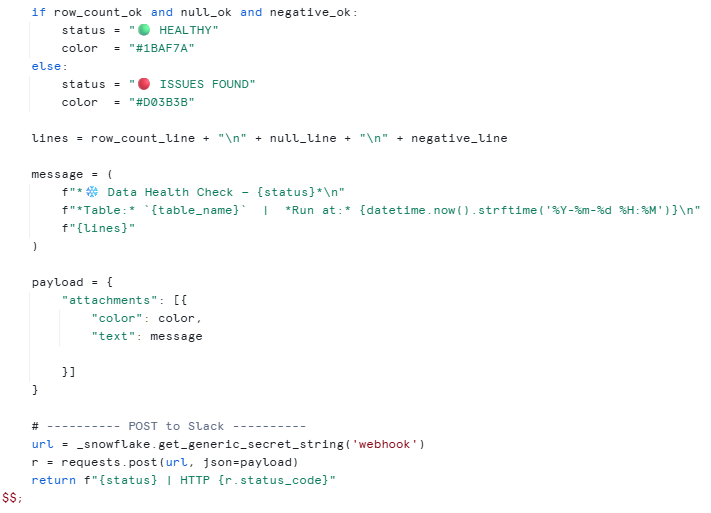
Posting “hello” is fine for testing, but the point of this pattern is to send messages that matter. Here’s a procedure that runs three quick checks on a table and posts a colored status card to Slack — green if everything looks fine, red if something is off
If you already had a Slack workspace, the whole thing is closer to 15 minutes. From this point on, anywhere in Snowflake you can write SQL, you can also raise a Slack notification — and that changes what “operational visibility” means for a data platform