 1
1
 0
0
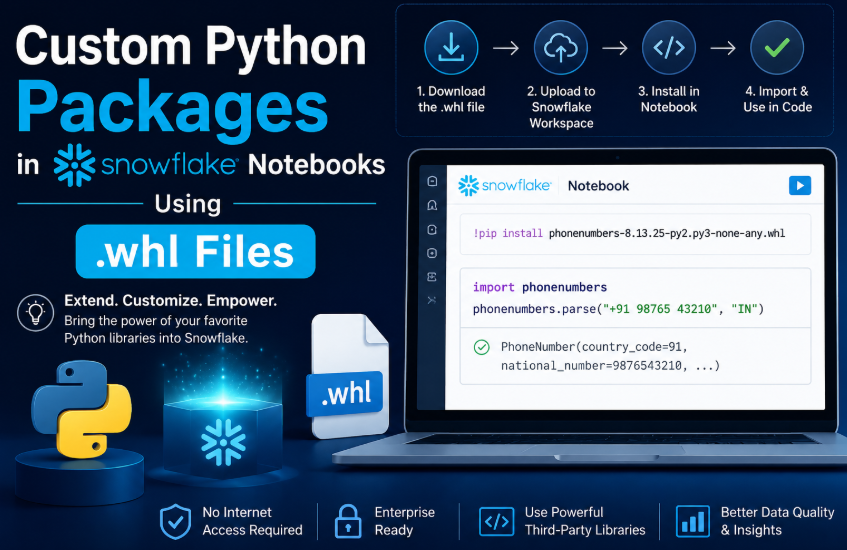
Custom Python Packages in Snowflake Notebooks Using .whl Files: Snowflake Notebooks are becoming a powerful environment for combining data engineering, analytics, and AI workflows directly within the Snowflake ecosystem. However, one common limitation practitioners encounter is:
“What if the required Python package is not available by default?”
Unlike traditional Jupyter environments, Snowflake operates in a controlled execution environment, which means installing third-party libraries is not always straightforward.
In this article, we will explore:
- How to install custom Python packages in Snowflake Notebooks
- Why .whl files are the most reliable approach
- A real-world use case demonstrating the value
- Step-by-step implementation (production-ready)
The Challenge
When trying a simple installation like:
!pip install faker
You may encounter:
Package sources not available
This happens because:
- The notebook does not have access to PyPI
- No External Access Integration (EAI) is configured
- No Artifact Repository is attached
In enterprise environments, this is very common due to security restrictions.
The Solution: Installing Packages via .whl Files
The most reliable and controlled approach is:
Download the package locally → Upload to Snowflake Workspace → Install from .whl
This method:
- Works without internet access
- Ensures reproducibility
- Fits enterprise governance models
Step-by-Step Implementation
Step-by-Step Implementation
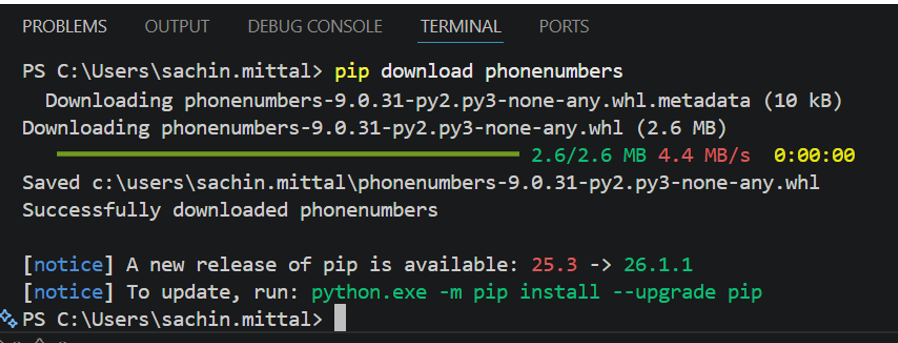
Step 1: Download the package locally
On your local machine:
pip download phonenumbers
This will generate a .whl file like:
phonenumbers-8.13.XX-py2.py3-none-any.whl
Step2: Upload the .whl file into Snowflake Workspace
- Open Snowsight
- Navigate to Projects → Notebook
- Go to Workspace Files panel
- Click Upload
- Upload the .whl file
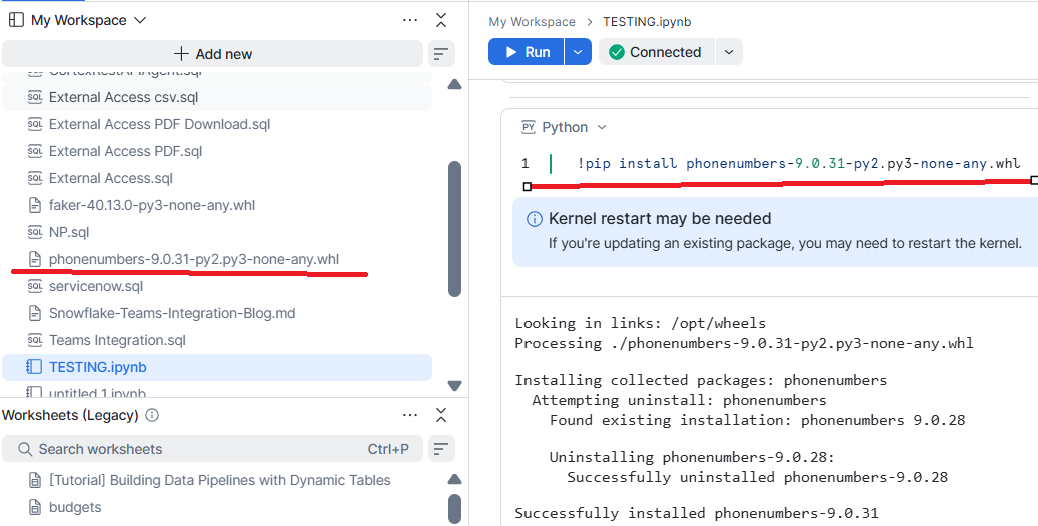
Step 3: Install the package inside the notebook
!pip install phonenumbers-9.0.31-py2.py3-none-any.whl
Step 4: Import and use the package
import phonenumbers
print(phonenumbers.__version__)
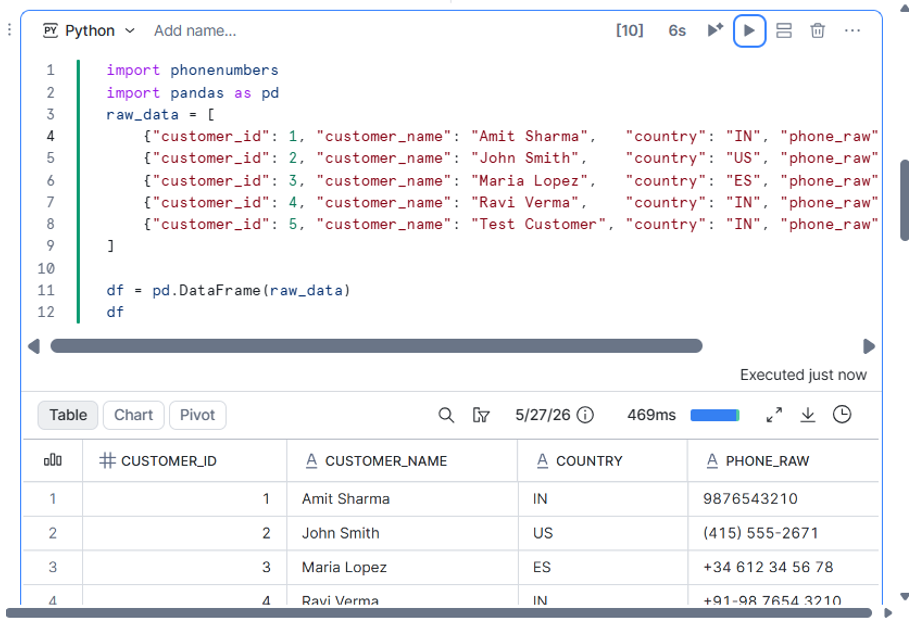
Real-World Use Case: Phone Number Standardization
Customer data often contains inconsistent phone formats:
- 9876543210
- +91-98 7654 3210
- (415) 555-2671
This leads to:
- Failed SMS delivery
- Poor data quality
- Integration issues with CRM systems
Solution using phonenumbers
Solution using phonenumbers
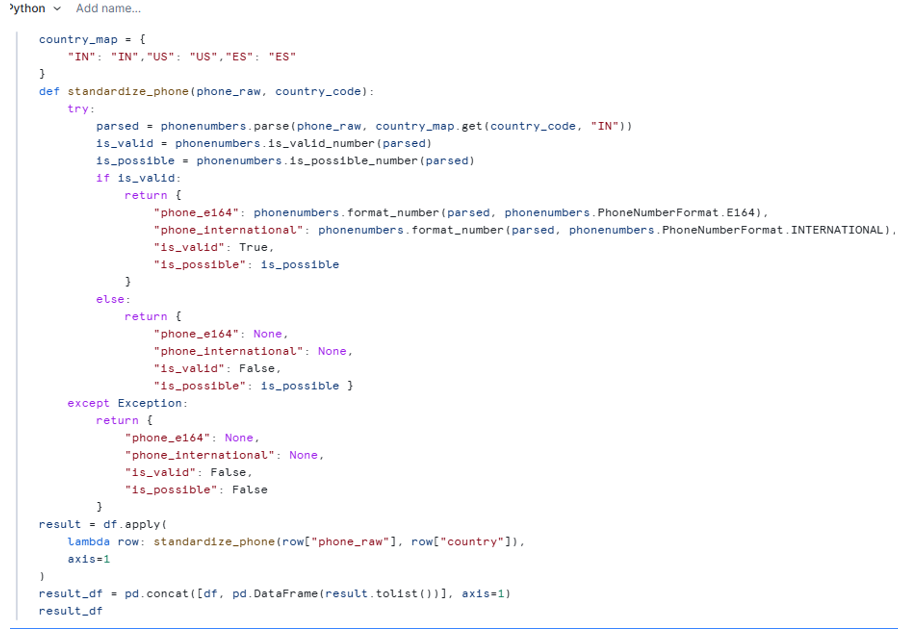
In this step, we use the uploaded third-party package phonenumbers to clean, validate, and standardize customer phone numbers.
The package was installed in Snowflake Notebook using the uploaded .whl file. Without that .whl package, this country-aware phone validation logic would not be available in the notebook.
What this code is doing
First, we define a simple country_map:
country_map = {

"IN": "IN",

"US": "US",

"ES": "ES"

}
This tells the phonenumbers package which country rules to apply while parsing a phone number.
For example:
- IN applies Indian phone number rules
- US applies United States phone number rules
- ES applies Spain phone number rules
Parsing the phone number
parsed = phonenumbers.parse(phone_raw, country_map.get(country_code, "IN"))
This line converts the raw phone number into a structured phone number object.
For example:
9876543210
+91-98 7654 3210
(415) 555-2671
These are messy formats, but phonenumbers.parse() understands them based on the country code.
If the country code is missing or not found in our map, we default to India:
country_map.get(country_code, "IN")
Checking whether the number is valid
is_valid = phonenumbers.is_valid_number(parsed)
is_possible = phonenumbers.is_possible_number(parsed)
Formatting the number
If the phone number is valid, we generate two standardized formats:
“phone_e164”: phonenumbers.format_number(parsed, phonenumbers.PhoneNumberFormat.E164)
E.164 format is the global standard format used by APIs, SMS platforms, and CRM systems.
Example:
+919876543210
Then we also create a human-readable international format:
“phone_international”: phonenumbers.format_number(parsed, phonenumbers.PhoneNumberFormat.INTERNATIONAL)
Example:
+91 98765 43210
Handling invalid numbers
If the number is not valid, we return:
{

"phone_e164": None,

"phone_international": None,

"is_valid": False,

"is_possible": is_possible

}
Applying the function to the full DataFrame
Applying the function to the full DataFrame
result = df.apply(

lambda row: standardize_phone(row["phone_raw"], row["country"]),

axis=1

)
This applies the phone validation logic row by row.
Then we convert the result dictionary into a DataFrame and join it back with the original data:
result_df = pd.concat([df, pd.DataFrame(result.tolist())], axis=1)
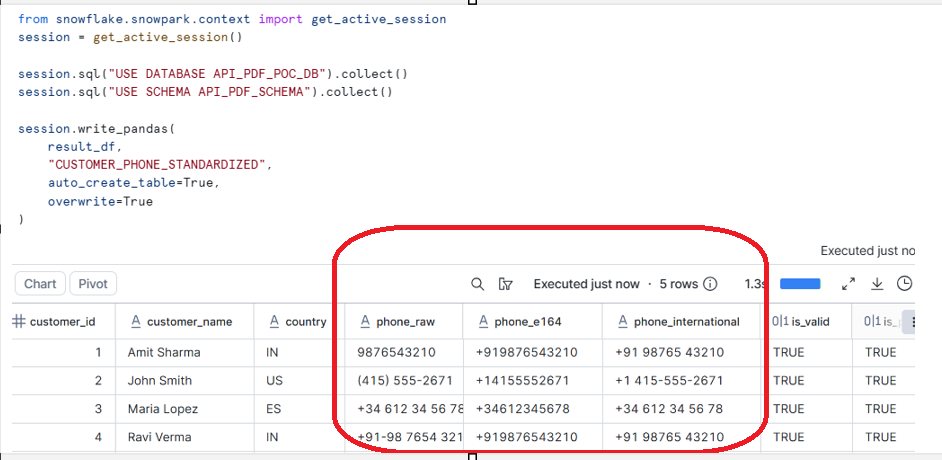
So the final output contains both:
- original raw phone number
- standardized phone number
- validation flags
Loading Results into Snowflake
What benefit did we get from the .whl file?
The key benefit is that the .whl file allowed us to bring an external Python package into Snowflake Notebook even when direct pip install from PyPI was not available.
Without the uploaded .whl file, Snowflake Notebook would not know the phonenumbers package.
Because we installed the .whl, we were able to:
- use country-aware phone parsing
- validate numbers using real telecom rules
- convert numbers into E.164 global standard format
- avoid writing complex custom regex logic