 2
2
 0
0
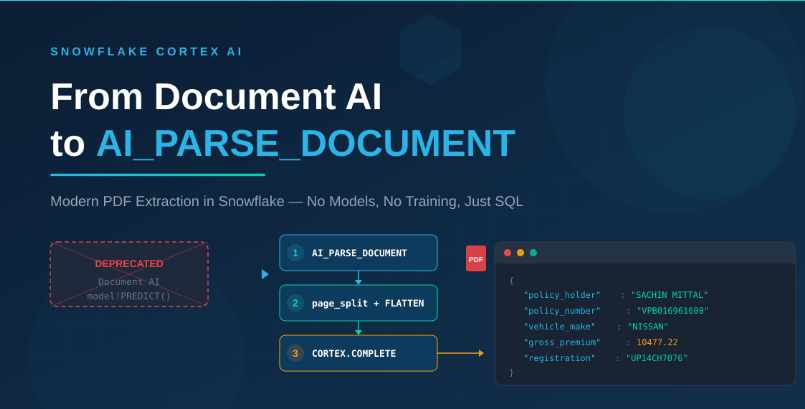
If you have been working with Snowflake’s Document AI for PDF extraction, there is an important update you need to know about. Snowflake has officially deprecated Document AI and the model-build PREDICT method. In its place, Snowflake has introduced a far simpler, more powerful, and production-ready alternative: AI_PARSE_DOCUMENT.
This blog walks you through the complete transition — why Document AI was retired, what AI_PARSE_DOCUMENT brings to the table, and a full hands-on tutorial showing you how to extract structured business fields from a real car insurance policy PDF using nothing but SQL in Snowflake.
Why Was Document AI Deprecated?
Document AI was Snowflake’s earlier approach to PDF and document extraction. It required users to:
- Build custom ML models for each document type (invoice, policy, claim, etc.)
- Train the model with labelled samples and manage model versions
- Use the PREDICT function to extract fields from new documents
- Remain tightly coupled to specific document layouts — any change in format broke the model
The old approach looked something like this:
— Old approach (DEPRECATED)
SELECT doc_ai_model!PREDICT(GET_PRESIGNED_URL(@stage, 'file.pdf'));
The fundamental problem was that Document AI required per-document-type model management. In enterprise environments where you deal with hundreds of document types across claims, policies, invoices, and correspondence, maintaining individual models became unsustainable.
What Does This Mean in Practice?
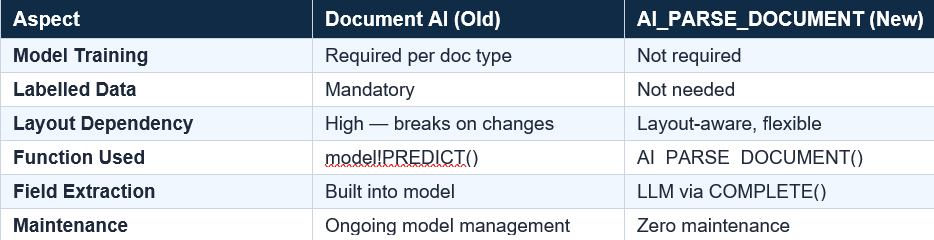
Per document type model: In Document AI, you had to build a separate ML model for each document type. Car insurance policy? Train Model A. Health claim form? Train Model B.Invoice? Train Model C. Each model only understood its own layout — 10 document types meant 10 separate models to build and maintain. With AI_PARSE_DOCUMENT, the same single function call works on any PDF — no models to build at all.
Labelled data mandatory: To train each Document AI model, you had to manually open 20–50 sample PDFs, draw bounding boxes around fields like “Policy Number” or “Premium”, and label each one. If the document layout changed, you had to relabel and retrain. With AI_PARSE_DOCUMENT + COMPLETE, there is zero labelling — you simply write a prompt asking for the fields you need.
What Is AI_PARSE_DOCUMENT?
AI_PARSE_DOCUMENT is Snowflake Cortex AI’s modern, built-in function for parsing PDF documents. It reads the full content of a PDF and returns structured output — without requiring any custom model training, labelling, or layout-specific configuration.
Key Capabilities
- Zero model training — works out of the box on any PDF
- Layout-aware parsing — understands tables, headers, paragraphs, and multi-column layouts
- Page-level splitting with the page_split: true option for per-page text extraction
- Native Cortex integration — combine with COMPLETE for intelligent field extraction using LLMs
- Pure SQL workflow — no Python, no external services, no model registry
Benefits and Significance
1. Democratized Document Intelligence
With Document AI, only teams with ML expertise could build and manage extraction models. AI_PARSE_DOCUMENT puts document parsing in the hands of every SQL developer. If you can write a SELECT statement, you can parse a PDF.
2. Layout Agnostic
Insurance policies, bank statements, medical reports — each has a different layout. Document AI needed a separate model for each. AI_PARSE_DOCUMENT handles them all with the same function call because it understands document structure natively.
3. LLM-Powered Extraction with COMPLETE
The real power comes when you pair AI_PARSE_DOCUMENT with SNOWFLAKE.CORTEX.COMPLETE. The parsing function gives you the raw text; the LLM gives you the intelligence to extract structured fields with simple prompt engineering. This combination replaces the entire Document AI model-building workflow.
Step 1: Set Up the Environment
Create the database, schema, and an internal stage to hold the PDF file.
CREATE OR REPLACE DATABASE INSURANCE_POC_DB;
CREATE OR REPLACE SCHEMA INSURANCE_POC_DB.DOC_AI;
CREATE OR REPLACE STAGE INSURANCE_POC_DB.DOC_AI.POLICY_STAGE ENCRYPTION = (TYPE = 'SNOWFLAKE_SSE');
Upload your car insurance PDF to the stage using the Snowsight UI or the PUT command, then verify:
LIST @INSURANCE_POC_DB.DOC_AI.POLICY_STAGE;
Step 2: Parse the PDF with AI_PARSE_DOCUMENT
This is where the magic happens. A single function call reads the entire PDF and returns structured JSON with page-level content.
CREATE OR REPLACE TABLE INSURANCE_POC_DB.DOC_AI.POLICY_PARSED_JSON AS

SELECT

'Car_Insurance.pdf' AS file_name,

AI_PARSE_DOCUMENT(

TO_FILE('@INSURANCE_POC_DB.DOC_AI.POLICY_STAGE',

'car_insurance.pdf'),

{

'mode': 'LAYOUT',

'page_split': true

}

) AS parsed_output;
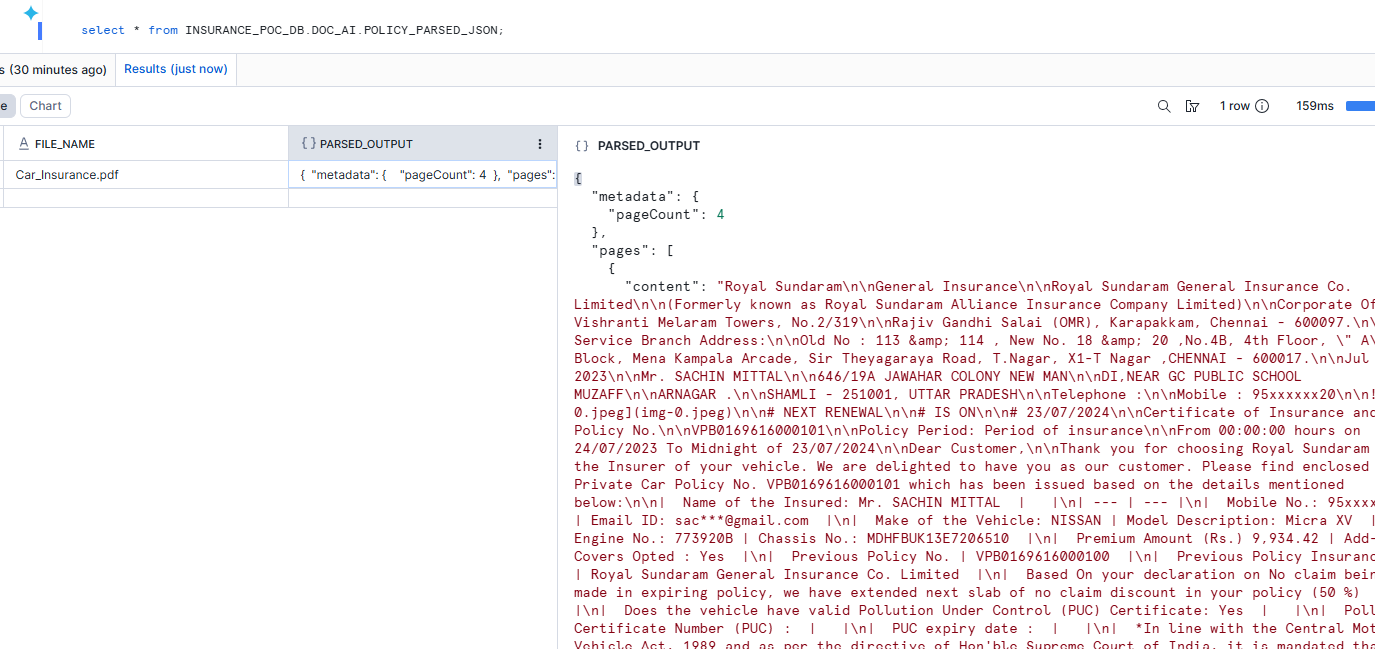
The ‘mode’: ‘LAYOUT’ option tells the parser to preserve document structure (tables, headers, columns). The ‘page_split’: true option splits the output by page, which is critical for targeted extraction.
Step 3: Flatten into Page-Level Content
The parsed output is a single JSON object. We use LATERAL FLATTEN to split it into one row per page, making it easy to inspect and query individual pages.
CREATE OR REPLACE TABLE INSURANCE_POC_DB.DOC_AI.POLICY_PAGES AS

SELECT

file_name,

p.value:index::INT AS page_index,

p.value:content::STRING AS page_content

FROM INSURANCE_POC_DB.DOC_AI.POLICY_PARSED_JSON,

LATERAL FLATTEN(input => parsed_output:pages) p;
SELECT * FROM INSURANCE_POC_DB.DOC_AI.POLICY_PAGES ORDER BY page_index;
At this point you can see the raw text of each page. For a 4-page policy, you get 4 rows — each with the full text content of that page.
Step 4: Build a Combined Context for the LLM
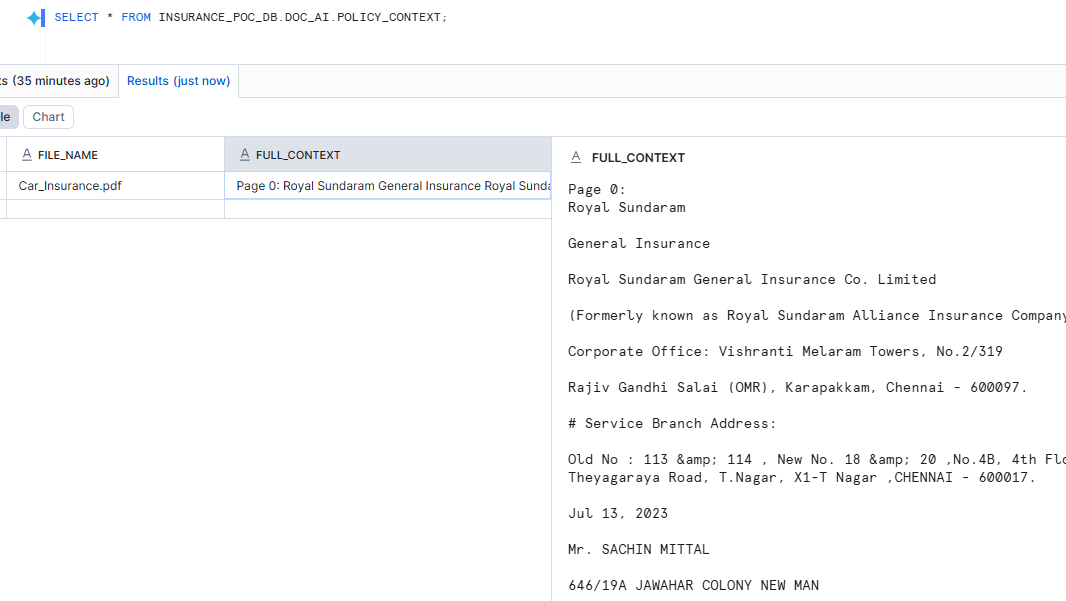
The COMPLETE function works best when you give it one consolidated context block rather than separate page fragments. We use LISTAGG to combine all pages into a single text column.
CREATE OR REPLACE VIEW INSURANCE_POC_DB.DOC_AI.POLICY_CONTEXT AS

SELECT

file_name,

LISTAGG(

'Page ' || page_index || ':' || CHAR(10) || page_content,

'\n\n---\n\n'

) WITHIN GROUP (ORDER BY page_index) AS full_context

FROM INSURANCE_POC_DB.DOC_AI.POLICY_PAGES

GROUP BY file_name;
For large PDFs (50+ pages): do not combine all pages. Instead, use Cortex Search to retrieve only relevant chunks, then send those to COMPLETE. This keeps prompts efficient and improves accuracy.
Step 5: Extract Business Fields with COMPLETE
Now we use Snowflake Cortex COMPLETE with a clear prompt to extract structured JSON from the parsed policy text.
SELECT

file_name,

SNOWFLAKE.CORTEX.COMPLETE(

'llama3.1-70b',

CONCAT(

'You are extracting structured data from an insurance policy. ',

'Return only valid JSON with these keys: ',

'policy_holder_name, policy_number, insured_declared_value, ',

'total_premium, taxable_premium, igst, gross_premium, ',

'vehicle_make, registration_number, ',

'policy_start_date, policy_end_date. ',

'If a value is not found, return null. ',

'Use only the context below.',

CHAR(10), CHAR(10),

full_context

)

) AS extracted_json

FROM INSURANCE_POC_DB.DOC_AI.POLICY_CONTEXT;
Step 6: Store and Parse the Extraction
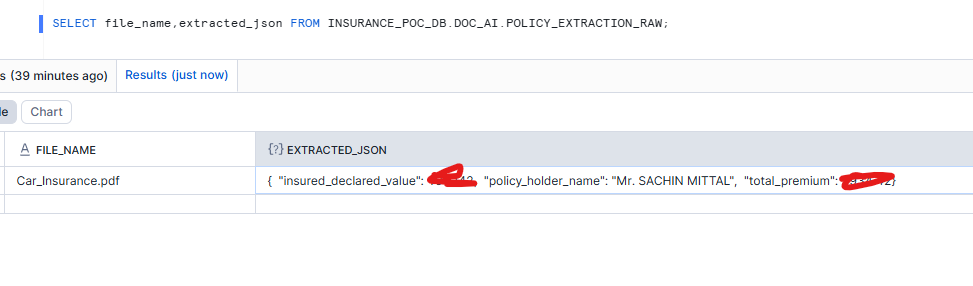
For production use, store the raw LLM output and parse it into a structured table using TRY_PARSE_JSON for safe JSON handling.
CREATE OR REPLACE TABLE INSURANCE_POC_DB.DOC_AI.POLICY_EXTRACTION_RAW (

file_name STRING,

extracted_json_string STRING,

extracted_json VARIANT,

loaded_at TIMESTAMP_NTZ DEFAULT CURRENT_TIMESTAMP()

);
INSERT INTO INSURANCE_POC_DB.DOC_AI.POLICY_EXTRACTION_RAW (

file_name, extracted_json_string, extracted_json

)

SELECT

file_name,

SNOWFLAKE.CORTEX.COMPLETE('llama3.1-70b',

CONCAT('You are extracting structured data... ',

full_context)

) AS extracted_json_string,

TRY_PARSE_JSON(extracted_json_string) AS extracted_json

FROM INSURANCE_POC_DB.DOC_AI.POLICY_CONTEXT;
Step 7: Build the Final Extraction Table
Finally, we create a clean, typed extraction table by parsing individual fields from the JSON output.
CREATE OR REPLACE TABLE INSURANCE_POC_DB.DOC_AI.POLICY_EXTRACTION_FINAL (

file_name STRING,

policy_holder_name STRING,

insured_declared_value STRING,

total_premium STRING,

loaded_at TIMESTAMP_NTZ DEFAULT CURRENT_TIMESTAMP()

);
INSERT INTO POLICY_EXTRACTION_FINAL

(file_name, policy_holder_name,

insured_declared_value, total_premium)

SELECT

file_name,

extracted_json:policy_holder_name::STRING,

extracted_json:insured_declared_value::STRING,

extracted_json:total_premium::STRING

FROM POLICY_EXTRACTION_RAW

WHERE extracted_json IS NOT NULL;

Complete Pipeline Architecture
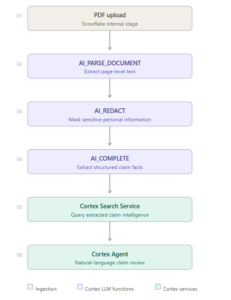
Here is the end-to-end data flow for this approach:
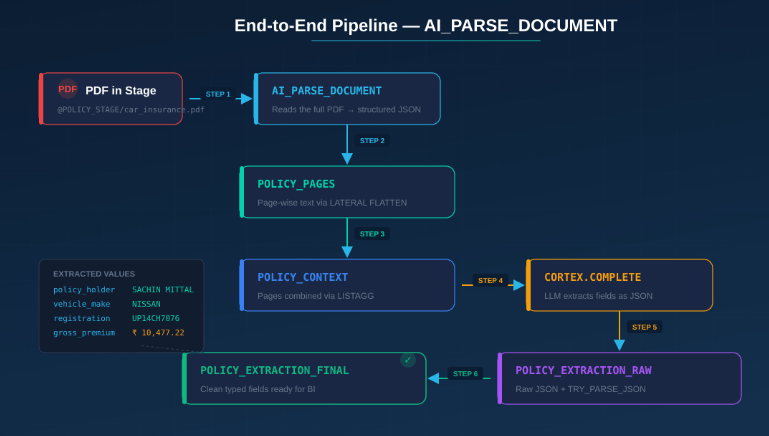
Every step is pure SQL. There are no external dependencies, no Python scripts, no API keys, and no model management. This is the power of Snowflake Cortex AI.
Scaling Considerations for Large Documents
The approach shown works perfectly for small to medium PDFs (up to about 30–50 pages). For larger documents, consider this enhanced pattern:
- Parse the PDF with AI_PARSE_DOCUMENT to get page-level text
- Chunk the page content into smaller segments and store in a chunk table
- Index the chunks using Cortex Search for semantic retrieval
- Retrieve only the top relevant chunks for your extraction query
- Extract with COMPLETE using only the relevant context
Conclusion
The deprecation of Document AI is not just an API change — it represents a fundamental shift in how Snowflake approaches document intelligence.AI_PARSE_DOCUMENT combined with COMPLETE gives you a pattern that is simpler to build, easier to maintain, and more flexible than anything Document AI offered. Whether you are processing insurance policies, invoices, medical records, or legal contracts — the workflow is the same.